- Microsoft is rolling out new features for the Link to Windows app
- It now allows Android users to lock their Windows 11 PC remotely
- Other new features include sharing clipboard content (images or text), one-touch screen mirroring of the phone on the desktop, and more
Windows 11 users who've hooked up their Android smartphone to the OS can now get the benefit of some nifty new features, including the ability to lock their PC remotely with their phone.
Windows Latest reports that as of the second week of December, Microsoft is rolling out these new abilities, and you can get them by updating the Link to Windows Android app to the latest version.
This introduces a big 'Lock PC' button on the Android device, which when pressed does exactly that, locking your Windows 11 system even if you're nowhere near it. Windows Latest observes that this happens in just a few seconds, so pretty swiftly indeed.
There are new buttons to send a file from your phone to the PC, and mirror your phone screen to the desktop. You can also send files from the Windows 11 PC to the Android handset, and freely share clipboard content between the two devices (which includes images as well as text you've copied).
On top of that, there's a recent activity panel that contains any files or links that've recently been shared, so you can see these at a glance.
The Android app now displays a couple of key details from your PC, too (which are updated in real-time, more or less – every minute or so). Those are the battery level (for laptops) and Wi-Fi signal strength, which could be a handy to know.
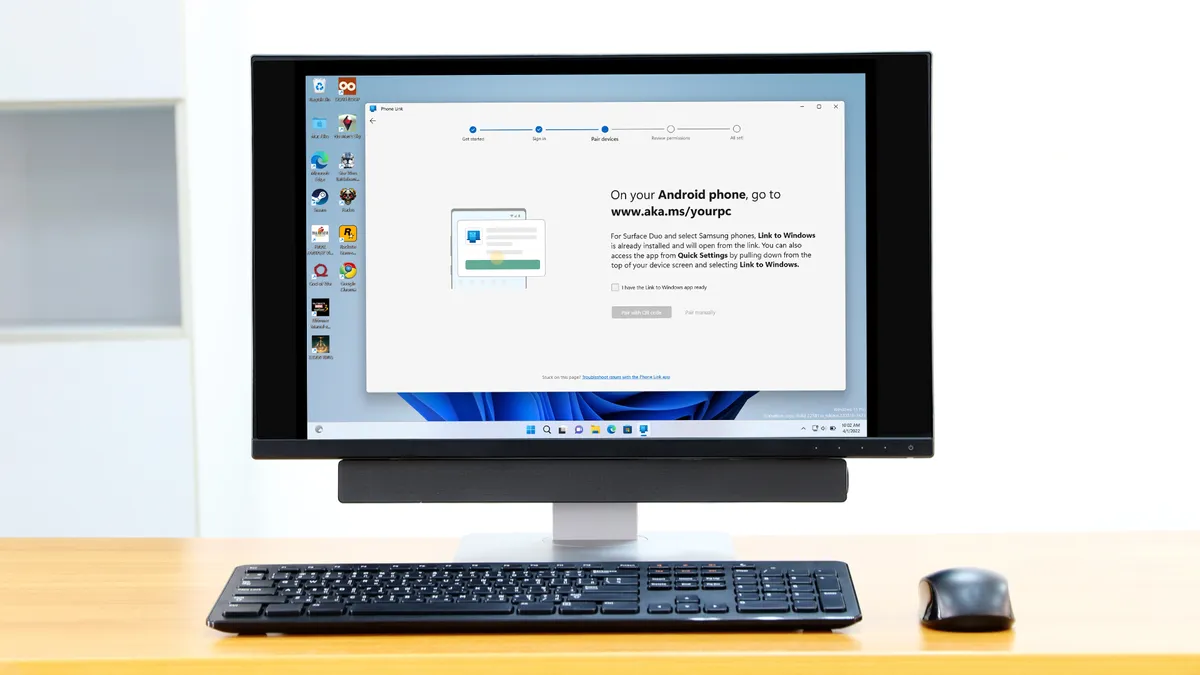
How to get these nifty new abilities
This considerably fleshes out the Link to Windows app for Android, and it's a sizeable step forward for those who use this in conjunction with the Phone Link app on the PC. The ability to share clipboard content easily, and that lock PC feature, are the big highlights here. It's also convenient to have screen mirroring in easy reach with just the tap of a button.
We'd previously seen this functionality in testing, and it was present in a beta rollout last month, but now we're reportedly getting the full upgrade rolling out to all Phone Link users. If you want to get the benefit, update your Link to Windows app now, though it may still take a little time for these new goodies to come through, as ever with any new feature deployment.
To check for updates for the Android app, as per Microsoft's instructions, go into the Settings panel for your phone, and navigate to Advanced features, then tap on Link to Windows. Select the ellipsis (three dots) in the upper-right corner and tap About Link to Windows, where you'll be able to check for updates, and install one if it's available.
If you haven't got started with Phone Link for Windows 11 (and Link to Windows), and you want to do so, we've got an explainer on how to get going. It's not difficult to set up, and there's some surprisingly powerful cross-device functionality on tap (with Phone Link now having its own side panel off the Start menu, too).

➡️ Read our full guide to the best computers
1. Best Windows:
Dell Tower Plus
2. Best Mac:
Apple Mac mini M4
3. Best Mac AIO:
Apple iMac 24-inch (M4)
Follow TechRadar on Google News and add us as a preferred source to get our expert news, reviews, and opinion in your feeds. Make sure to click the Follow button!
And of course you can also follow TechRadar on TikTok for news, reviews, unboxings in video form, and get regular updates from us on WhatsApp too.
You must confirm your public display name before commenting
Please logout and then login again, you will then be prompted to enter your display name.