Sponsored by

How to change your GPS location on Android devices with Surfshark

If you've used a VPN, or even know a little about them, you'll likely understand that they are adept at changing your apparent location.
Simply pick a server location in a different location and your device will appear to be online in that country.

What is GPS and what does it do?
GPS, or Global Positioning System, uses satellites to triangulate a precise physical location anywhere on the Earth.
Smartphones use this data to establish your location which can be used in apps to offer mapping services, local search results and more.
From ride-hailing apps and fitness trackers to weather apps, dating services and social media check-ins, the list of software provisions that use GPS goes on and on.
Websites also use this data as a way to efficiently deliver location-based content, recommendations and advertising.
All of that makes GPS a heavily relied upon part of a smartphone's source of information.
Why would I need to change my GPS location?
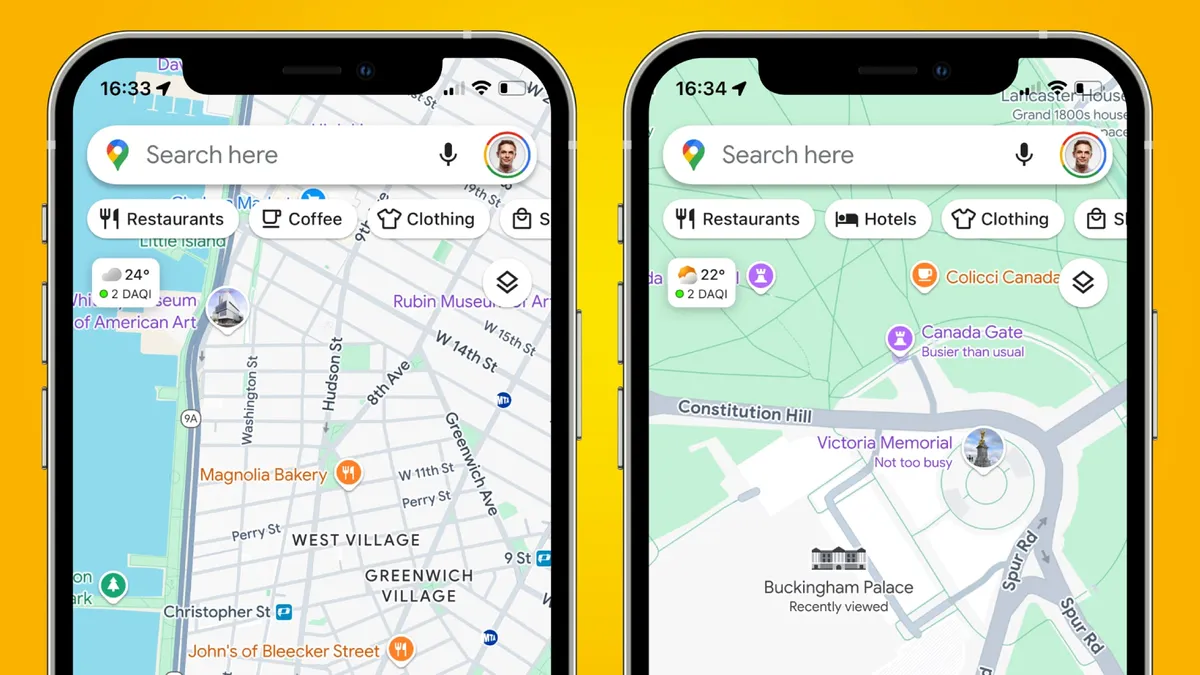
There are a good few reasons why someone might want to change their GPS location.
One of the big ones is privacy. Since GPS data literally tracks where you are, this can be a major reveal on your life – from where you live and work to where you exercise, shop and socialise. Build that over time and you're left with a pretty detailed profile that can be used to analyse you and advertise at (and influence) you more effectively. Control over GPS, or the ability to mask it, can help reduce tracking and profiling across apps, advertisers and third-party data brokers alike.
Content access is another common use for VPNs, appearing to be at home to watch a favorite show while travelling to other countries, for example. Streaming services can put blocks on this which even thwart some VPN providers, making the option to change your GPS an even more powerful and compelling layer to ensure you appear where you need to be.
For developers and testers, the ability to change GPS location is also a powerful feature, allowing for testing, building and debugging without actually having to move between cities and countries.
Spoofing a fake GPS location also became popular a couple of years ago for Pokémon Go addicts. The game uses location data from GPS as players hunt for their next Kecleon or Volcarona. But many games like this strictly prohibit GPS manipulation, meaning it can lead to account warnings, suspensions, or permanent bans. And the VPN use-case with Pokémon Go was actually more complicated than it originally looked, with extra software and steps required to make it function.
How to change your GPS location on Android devices with Surfshark
Surfshark is one of the few VPN services that offers built-in GPS override functionality on Android, making it relatively simple to change your GPS location alongside your IP address. Here’s how:
Download and install Surfshark – If you don’t already have it, sign up for Surfshark and download the Surfshark app from the Google Play Store using your account details.
Enable GPS override – Open the Surfshark app and head into the Settings menu. Locate the Advanced settings section, where you can toggle on the Override GPS location.
Note that Android will ask for additional permissions. These are necessary for Surfshark to modify how your device reports its GPS data, so be sure to grant them when prompted.
Select a VPN server location – Once GPS override is enabled, return to Surfshark’s main screen and choose the server location you want to appear in. When you connect to that server, Surfshark will align your GPS coordinates with the selected VPN location.
So, if you connect to a server in Paris, your phone will report that it is physically located in Paris, rather than simply routing traffic through France.
Check your new GPS location – You can verify that everything is working by opening a mapping app like Google Maps. Your location pin should now appear in the city or country you selected.

For best results follow these steps too:
- Restart any apps that rely on location data after enabling GPS override.
- Make sure location services are enabled on your Android device.
- Combine GPS override with Surfshark’s VPN connection for consistent location masking across apps and websites.
Synchronising your IP address and GPS data creates a more cohesive and private digital footprint, ideal for privacy-conscious users, developers, and anyone wanting more control over how their location information is shared.
Can I change GPS location on my iPhone with Surfshark?
The short answer is no.
As is often the case with VPN apps, certain features are limited to specific device operating systems. Since iOS, currently, doesn't allow a VPN to override or modify GPS data like Android does, this can't be offered as an option. This may change in the future though.
